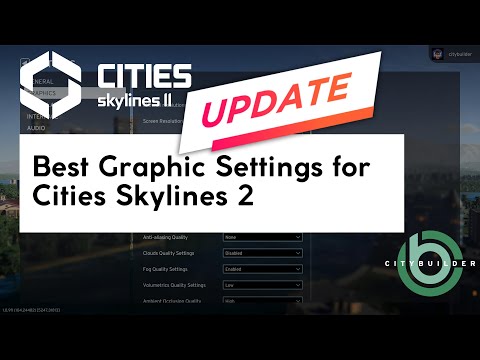
Graphics settings decide whether Cities: Skylines II runs smoothly on a 4K monitor. The video goes through every option on a Core i9-9900KF with an RTX 4070 Ti and 64 GB RAM, explains why each one was changed, tests the result in a city and makes final adjustments in game. Start from a preset, then lower the most expensive effects first.
準備 · What you need
- The test system — Intel Core i9-9900KF · NVIDIA GeForce RTX 4070 Ti · 64 GB DDR4 · two 28-inch 4K monitors
Graphics settings were the first question every Cities: Skylines II player had at launch. Even on a strong PC the game struggled at 4K, and the defaults didn’t help. This guide goes through all the options in the video and explains why each one was changed on my system.
The test system
An Intel Core i9-9900KF, an NVIDIA GeForce RTX 4070 Ti, 64 GB of RAM and two 28-inch 4K monitors. That’s far from the best possible specs for CS2, but a realistic upper-mid-range gaming PC. If your PC is weaker, the same approach applies; you’ll just end up with lower values.
How to approach it
- Start from a preset that matches your graphics card. Presets are a better starting point than turning everything to maximum and working down.
- Go through the options (2:49) and lower the most expensive effects first. The video gives a reason for each change.
- Test in a real city (8:51). An empty map runs much faster than a busy downtown, so settings that feel smooth at the start can collapse later.
- Adjust in game (9:43) until the frame rate feels smooth, then leave it alone.
Which settings cost the most
In Cities: Skylines II, post-processing and lighting effects are usually the heaviest. Typical candidates to lower first:
- Depth of field and motion blur. They cost performance and blur a game you want to look at closely. Many players turn both off.
- Global illumination and volumetrics. Beautiful, expensive.
- Level of detail and shadow quality. Lower values help most in large, dense cities.
- Resolution scaling. Rendering below native 4K and scaling up keeps the image sharp enough for a city builder at a fraction of the cost.
Change one thing at a time and check the result. Some settings make a big visual difference for little cost, others the reverse.
A city builder isn’t a shooter
A stable 30 frames per second is fine for building. What matters more is that the camera moves smoothly when you pan across the city and that the game doesn’t stutter at high simulation speed. Tune for that, not for a number in the corner.
After the first patch
Two days later a patch improved performance noticeably. See the updated graphics settings. Performance has changed with many patches since, so treat any settings guide, this one included, as a starting point.
Making it look good, too
Performance is half the story. The channel uses Lumina for lighting and colour grading, which can make a city look more natural at the same performance cost. It’s in the CS2 Mod Stack.
Video chapters
- 0:00Intro
- 2:49Graphics options in Cities: Skylines II
- 8:51In-game example
- 9:43Making in-game adjustments to the settings
- 11:17Outro
Clicking a chapter starts the video above at that point.
Related videos
FAQ
What are good graphics settings for Cities: Skylines II?
Start from a preset that suits your GPU, then lower the most expensive effects first. The video shows every option with the reason it was changed on a 4K monitor.
Are these settings still up to date?
They were made in launch week. Two days later a patch improved performance, covered in the updated graphics settings video. Later patches changed things again.
Which Cities: Skylines II settings hurt performance most?
Usually depth of field, global illumination, volumetrics, level of detail and shadows. Lower those first and check the result in a busy part of your city.
What frame rate do I need for Cities: Skylines II?
For building, a stable 30 fps feels fine. Smooth camera movement and no stutter at high simulation speed matter more than the number.